
A screenshot of somebody else’s television menu is a tempting shortcut. It also leaves out the model, panel variation, signal type, room and viewing preference that made those numbers useful. A reliable home setup begins with your own conditions and a small number of reversible comparisons.
This is a viewing setup, not an instrument-based calibration. Without measuring equipment, it would be misleading to certify a white point, colour accuracy or a particular brightness. You can still fix obvious framing errors, avoid unnecessary processing and find a comfortable presentation while keeping those limits clear.
Start with the room and the programme
Look at the screen with the television off. A bright window or lamp reflected in the panel may also compete with a dark scene. Where practical, change the light or your seating before asking the picture controls to overwhelm the reflection. Keep ventilation, stable mounting and the manufacturer’s placement guidance in mind.
Choose a programme you know well, including faces, bright detail and a dim scene. Do not use a heavily stylised image as the sole judge of natural colour. A sunset deliberately graded orange is a creative decision; neutralising it by eye can distort everything else.
Write down the input, app and signal information the television actually reports. Settings may be stored separately for different inputs and for SDR and HDR. An adjustment made while watching one source may have no effect on the next, or it may carry across more widely than expected. The manual is more reliable than guessing.
Use a documented preset as a starting point
Try an available cinema or filmmaker preset before creating a custom mixture of enhancements. The UHD Alliance describes Filmmaker Mode as preserving frame rate, aspect ratio and colour presentation while disabling listed processing such as interpolation and sharpening. It is a useful reference, not proof that every panel and room now meets a calibration target.
Let your eyes settle after switching from an aggressively vivid mode. A less blue white or less exaggerated colour may initially appear subdued. Equally, do not force yourself to watch an image that is uncomfortable in a bright room simply because a preset sounds authoritative. Adjust the appropriate light-output control using your television’s documentation.
Menu names are a trap here. A control labelled “brightness” can govern different things on different sets. Raising a black-level control to brighten the whole screen may wash out dark areas rather than improve visibility. If you cannot establish what the option changes, preserve the preset and find the model’s explanation first.
Keep the complete picture
A familiar programme can reveal unexpected cropping. Look at the position of on-screen graphics and the shape of circles and faces. Check the aspect-ratio or screen-fit option rather than stretching the image to eliminate every border. Black bars can be the correct consequence of fitting a differently shaped image inside your screen.
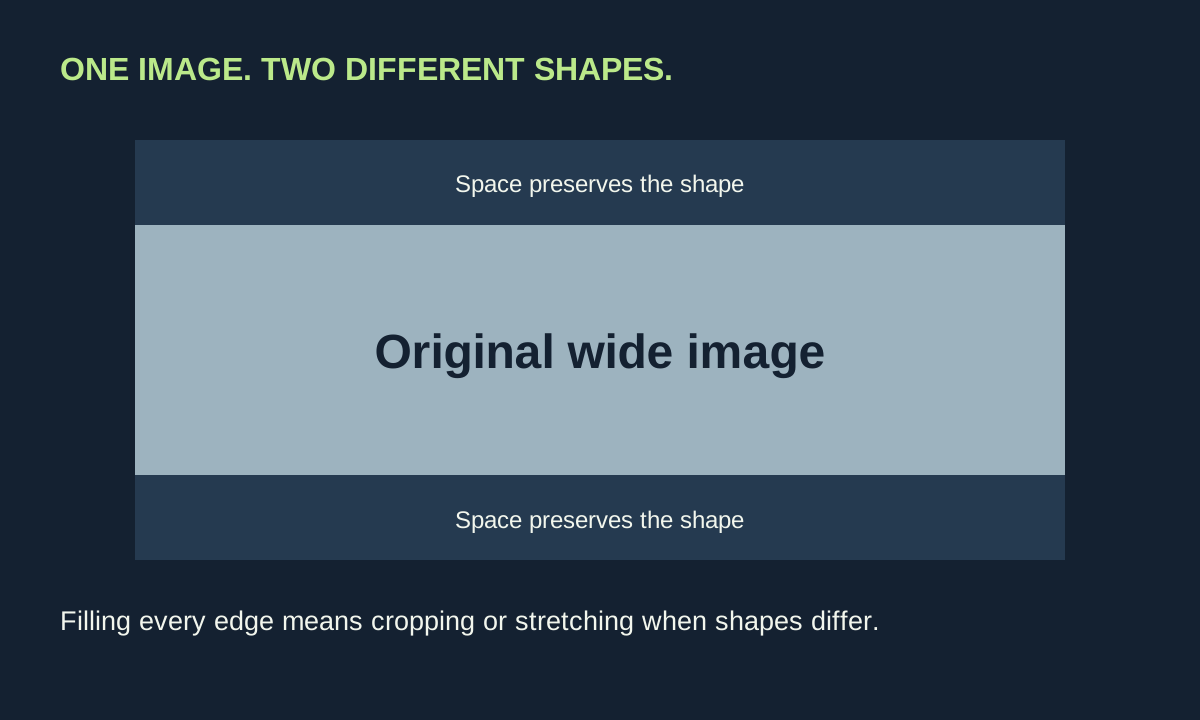
Our simple illustration is a rectangle placed inside another rectangle. If the inner image is wider, preserving its proportions leaves space above and below. Filling the screen requires either cutting off the sides or distorting the geometry. There is no setting that simultaneously preserves every pixel, every proportion and a mismatched full-screen shape.
For older material, avoid treating grain as a fault automatically. Noise reduction may make an image look cleaner while also changing fine texture. Compare a moving face or a textured surface in a short repeated scene. If the improvement only appears in a paused frame and motion now looks smeared, reconsider the trade-off.
Separate HDR from resolution
Resolution concerns the image’s spatial detail. High dynamic range concerns how brightness and colour information are represented and displayed. One label cannot substitute for the other. Dolby’s home HDR explanation describes metadata helping map content to a display’s capabilities; it does not make all televisions equally capable.
Check that the service, title, device and connection support the format you expect. A logo in a catalogue does not establish the active playback format. Use the player’s or television’s information screen if available. Avoid forcing every source into an HDR output merely to keep an HDR badge illuminated.
If you use an Apple TV, its documented dynamic-range matching option is one example of letting output follow the source. Other devices need their own instructions. Format switches may briefly interrupt the picture; that should be distinguished from persistent dropouts during a programme.
A comparison sheet that prevents circular tweaking
| Observation | Change to test | Reason to undo it |
|---|---|---|
| A lamp is visible in dark scenes | Move or dim the lamp where practical | The new position creates another distraction |
| Faces appear stretched | Restore an aspect-preserving screen mode | The source itself requires different handling |
| Bright outlines surround lettering | Compare reduced sharpening | There is no visible benefit on the actual source |
| Film movement looks artificially smooth | Compare interpolation off | You prefer a modest amount for comfortable motion |
Give each adjustment a reason and an undo condition. This avoids the common pattern of changing five controls, seeing a difference, and being unable to say which change helped. Our motion guide provides a separate test for cadence and interpolation.
Stop when ordinary viewing works
Recheck the saved setup during daytime and evening viewing. Two sensible presets can be more useful than one supposedly perfect compromise. Leave professional controls such as multipoint white balance alone unless you have the equipment and knowledge to measure their effects.
Finally, save the original and chosen settings somewhere easy to find. If a firmware update or another user changes the picture, you have a starting point. A good setup lets you watch a programme without repeatedly opening a menu; it does not require pretending that a living-room comparison is laboratory certification.