HD–1

Television, understood.

Picture. Sound. Story.

A good television setup starts with your room and what you watch. Explore practical guides to picture settings, dialogue, streaming and the craft behind a memorable programme.

Streaming

Why a fast connection can still produce a poor television stream

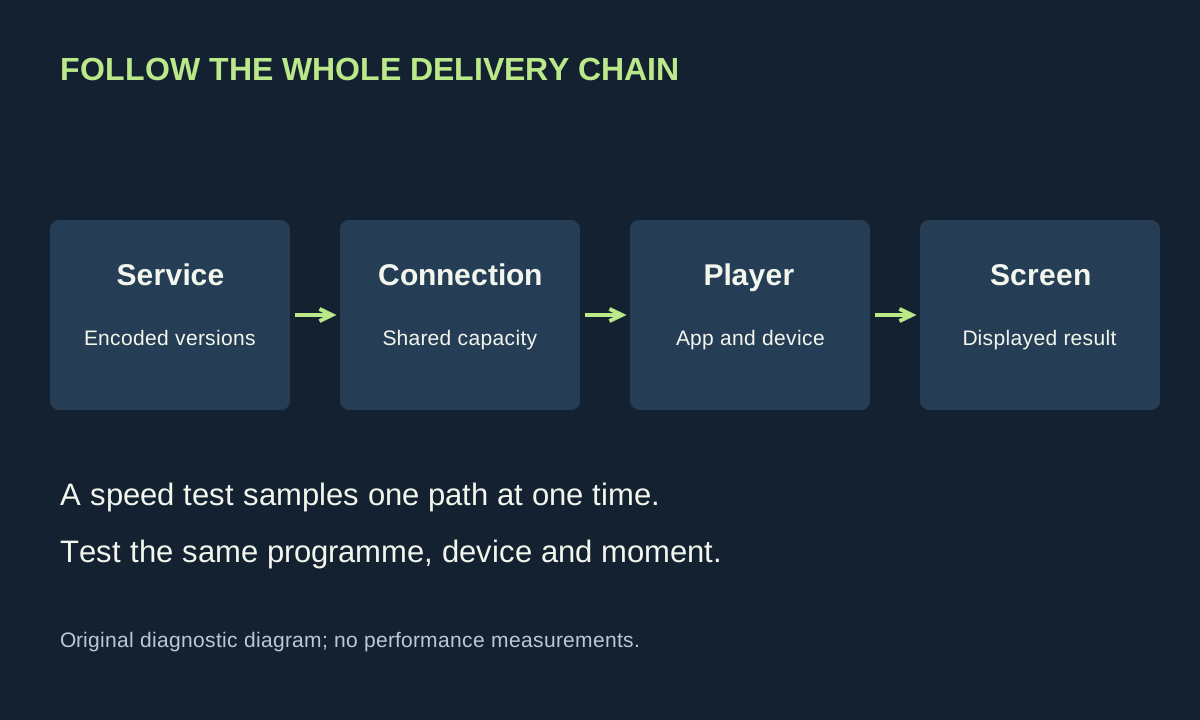
Service, internet connection, player and screen form a delivery chain. A speed test does not certify every stage.

The internet package promises a large number. A speed test looks healthy. Yet a programme becomes soft, pauses at awkward moments or looks worse on the television than on a laptop. The contradiction disappears when you stop treating streaming as a single measurement.

A stream travels through a service’s encoding and delivery system, your internet connection, the home network, an app and a playback device. The screen then displays what it receives. A fast result on one device at one moment tells you something about one path; it does not certify the entire chain.

Resolution is only one description

Resolution describes the dimensions of the image. Bitrate describes data delivered over time. Compression decides how efficiently that data represents the programme. Two pictures with the same pixel dimensions can retain different amounts of texture, particularly during motion or in complicated scenes.

Adaptive streaming commonly offers several encoded versions split into segments. The player can select between them as conditions change. MDN’s guide to adaptive media explains the underlying use of multiple quality versions and playlists. For a viewer, the practical consequence is that playback may continue while visible detail changes.

This is why an occasional soft moment and a complete pause should be recorded separately. The player may be protecting continuity in the first case; in the second, it may lack enough usable data to continue. Neither observation alone identifies whether the bottleneck is inside the home or outside it.

Use service requirements as a reference, not a promise

Netflix currently recommends stable speeds of at least 3 Mbps for 720p, 5 Mbps for 1080p and 15 Mbps for 4K in its published connection guidance. Those are service-specific recommendations, checked for this guide in October 2026. They are not universal requirements for every streaming service or a guarantee of a particular picture.

A connection also serves other activity. A large download, another television and a cloud upload may share capacity. A brief speed test conducted when the house is quiet may not represent the conditions when everyone starts using the network after dinner.

Keep units straight. A megabit per second measures a rate; a gigabyte allowance measures an amount. In a deliberately simplified calculation, a constant 10 Mbps stream for one hour transfers about 4.5 GB before additional overhead: ten million bits multiplied by 3,600 seconds, divided by eight and then by one billion. Real adaptive streams vary, so this is an arithmetic example, not a consumption forecast.

Make the symptom reproducible

Write down the programme, approximate time, device, app and symptom. Then repeat the same section. If the problem always appears at precisely the same moment, try another device or source before blaming broadband. If the fault occurs at different times, a changing delivery condition becomes a stronger possibility.

Compare another title within the same service, then a different service on the same television. Do not start with a factory reset. The comparison can identify whether the issue follows the title, app, device or home location while preserving account settings and household routines.

A useful log contains observations rather than verdicts: “image softened for ten seconds” is better than “provider throttled the stream”. The latter is a causal claim requiring evidence that an ordinary living-room test has not supplied.

Test the television’s path

Use the app’s connection test where it offers one. A laptop beside the router is a poor substitute for a television across the house. If a safely routed Ethernet connection is available, compare it temporarily with Wi-Fi using the same content and device. Avoid cables across walkways or changes to shared equipment you do not administer.

If wired playback is stable while wireless playback is not, investigate the local wireless link. If both fail similarly, the result shifts attention elsewhere without proving a particular external cause. Try again at another time and note what other network activity was taking place.

For a brief comparison, pause a large nonessential transfer that you control. Do not interrupt another person’s work or an essential backup without agreeing a time. If the symptom disappears, repeat the comparison once rather than assuming the first coincidence establishes causation.

Check entitlement and compatibility

The title, subscription, app and playback device can constrain available quality independently of bandwidth. Read the service’s current help for your exact combination. A 4K panel cannot turn a lower-resolution source into original 4K detail, even though the television scales the image to fill its pixels.

Check for an app update using the normal supported route. Restarting the app or device can be a reasonable reversible step, but record whether it actually changes the result. Avoid unverified “boosters”, unofficial streaming software or broad router changes offered as universal fixes.

Persistent blocky detail during demanding scenes may be part of the supplied encode. Raising television sharpness cannot recover discarded information and can exaggerate edges. Likewise, motion interpolation changes presentation rather than increasing network capacity. Our picture setup guide keeps those display adjustments separate.

Give support a useful problem report

If you need help, provide the device model, app version where available, times of failure, whether other titles work, and the wired-versus-wireless comparison. Remove account details from screenshots. A narrow reproducible report gives support a better starting point than a photograph of one impressive speed-test number.

Stop changing settings once the experiment identifies a sensible next step. The most valuable outcome may be learning that one app needs attention while the network is fine. It may also be recognising an unresolved service problem. Either result is more useful than buying a faster package without knowing what it is meant to fix.
Viewing room

Set up a television picture without chasing someone else’s numbers

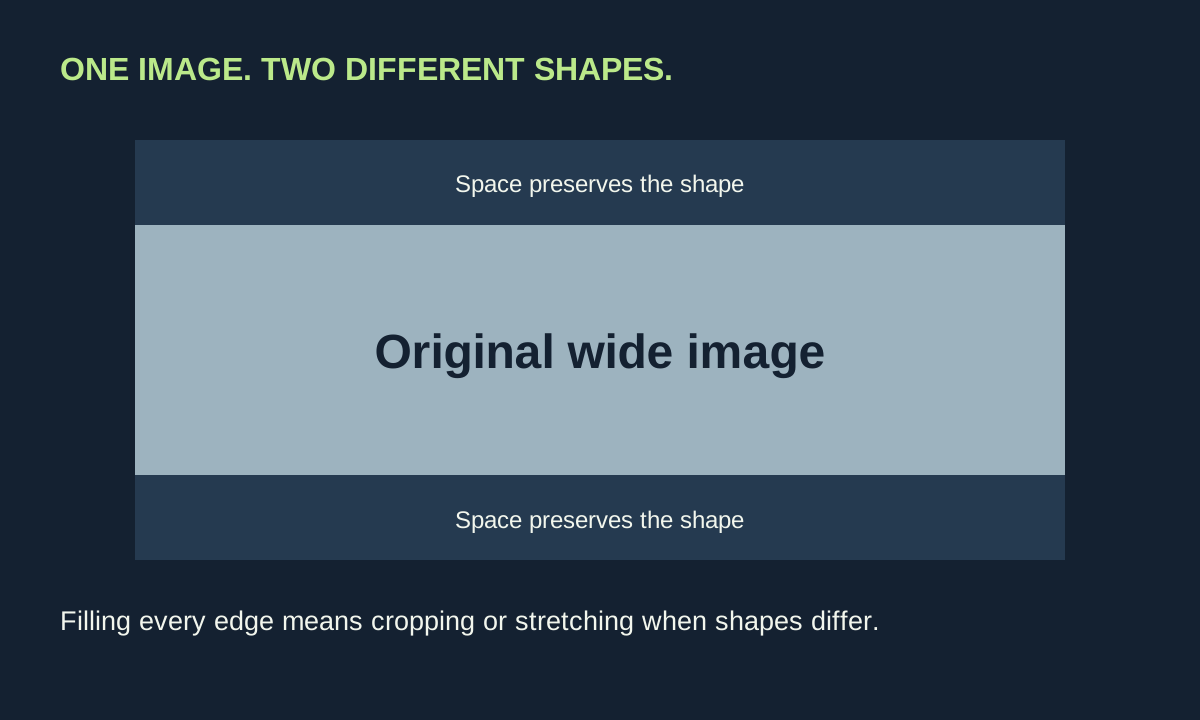
A wide picture fits inside a taller screen with unused space above and below. Filling the screen would require cropping or stretching.

A screenshot of somebody else’s television menu is a tempting shortcut. It also leaves out the model, panel variation, signal type, room and viewing preference that made those numbers useful. A reliable home setup begins with your own conditions and a small number of reversible comparisons.

This is a viewing setup, not an instrument-based calibration. Without measuring equipment, it would be misleading to certify a white point, colour accuracy or a particular brightness. You can still fix obvious framing errors, avoid unnecessary processing and find a comfortable presentation while keeping those limits clear.

Start with the room and the programme

Look at the screen with the television off. A bright window or lamp reflected in the panel may also compete with a dark scene. Where practical, change the light or your seating before asking the picture controls to overwhelm the reflection. Keep ventilation, stable mounting and the manufacturer’s placement guidance in mind.

Choose a programme you know well, including faces, bright detail and a dim scene. Do not use a heavily stylised image as the sole judge of natural colour. A sunset deliberately graded orange is a creative decision; neutralising it by eye can distort everything else.

Write down the input, app and signal information the television actually reports. Settings may be stored separately for different inputs and for SDR and HDR. An adjustment made while watching one source may have no effect on the next, or it may carry across more widely than expected. The manual is more reliable than guessing.

Use a documented preset as a starting point

Try an available cinema or filmmaker preset before creating a custom mixture of enhancements. The UHD Alliance describes Filmmaker Mode as preserving frame rate, aspect ratio and colour presentation while disabling listed processing such as interpolation and sharpening. It is a useful reference, not proof that every panel and room now meets a calibration target.

Let your eyes settle after switching from an aggressively vivid mode. A less blue white or less exaggerated colour may initially appear subdued. Equally, do not force yourself to watch an image that is uncomfortable in a bright room simply because a preset sounds authoritative. Adjust the appropriate light-output control using your television’s documentation.

Menu names are a trap here. A control labelled “brightness” can govern different things on different sets. Raising a black-level control to brighten the whole screen may wash out dark areas rather than improve visibility. If you cannot establish what the option changes, preserve the preset and find the model’s explanation first.

Keep the complete picture

A familiar programme can reveal unexpected cropping. Look at the position of on-screen graphics and the shape of circles and faces. Check the aspect-ratio or screen-fit option rather than stretching the image to eliminate every border. Black bars can be the correct consequence of fitting a differently shaped image inside your screen.

Our simple illustration is a rectangle placed inside another rectangle. If the inner image is wider, preserving its proportions leaves space above and below. Filling the screen requires either cutting off the sides or distorting the geometry. There is no setting that simultaneously preserves every pixel, every proportion and a mismatched full-screen shape.

For older material, avoid treating grain as a fault automatically. Noise reduction may make an image look cleaner while also changing fine texture. Compare a moving face or a textured surface in a short repeated scene. If the improvement only appears in a paused frame and motion now looks smeared, reconsider the trade-off.

Separate HDR from resolution

Resolution concerns the image’s spatial detail. High dynamic range concerns how brightness and colour information are represented and displayed. One label cannot substitute for the other. Dolby’s home HDR explanation describes metadata helping map content to a display’s capabilities; it does not make all televisions equally capable.

Check that the service, title, device and connection support the format you expect. A logo in a catalogue does not establish the active playback format. Use the player’s or television’s information screen if available. Avoid forcing every source into an HDR output merely to keep an HDR badge illuminated.

If you use an Apple TV, its documented dynamic-range matching option is one example of letting output follow the source. Other devices need their own instructions. Format switches may briefly interrupt the picture; that should be distinguished from persistent dropouts during a programme.

A comparison sheet that prevents circular tweaking

An original home viewing worksheet
Observation Change to test Reason to undo it
A lamp is visible in dark scenes Move or dim the lamp where practical The new position creates another distraction
Faces appear stretched Restore an aspect-preserving screen mode The source itself requires different handling
Bright outlines surround lettering Compare reduced sharpening There is no visible benefit on the actual source
Film movement looks artificially smooth Compare interpolation off You prefer a modest amount for comfortable motion

Give each adjustment a reason and an undo condition. This avoids the common pattern of changing five controls, seeing a difference, and being unable to say which change helped. Our motion guide provides a separate test for cadence and interpolation.

Stop when ordinary viewing works

Recheck the saved setup during daytime and evening viewing. Two sensible presets can be more useful than one supposedly perfect compromise. Leave professional controls such as multipoint white balance alone unless you have the equipment and knowledge to measure their effects.

Finally, save the original and chosen settings somewhere easy to find. If a firmware update or another user changes the picture, you have a starting point. A good setup lets you watch a programme without repeatedly opening a menu; it does not require pretending that a living-room comparison is laboratory certification.

Sound

A practical listening test for clearer television dialogue

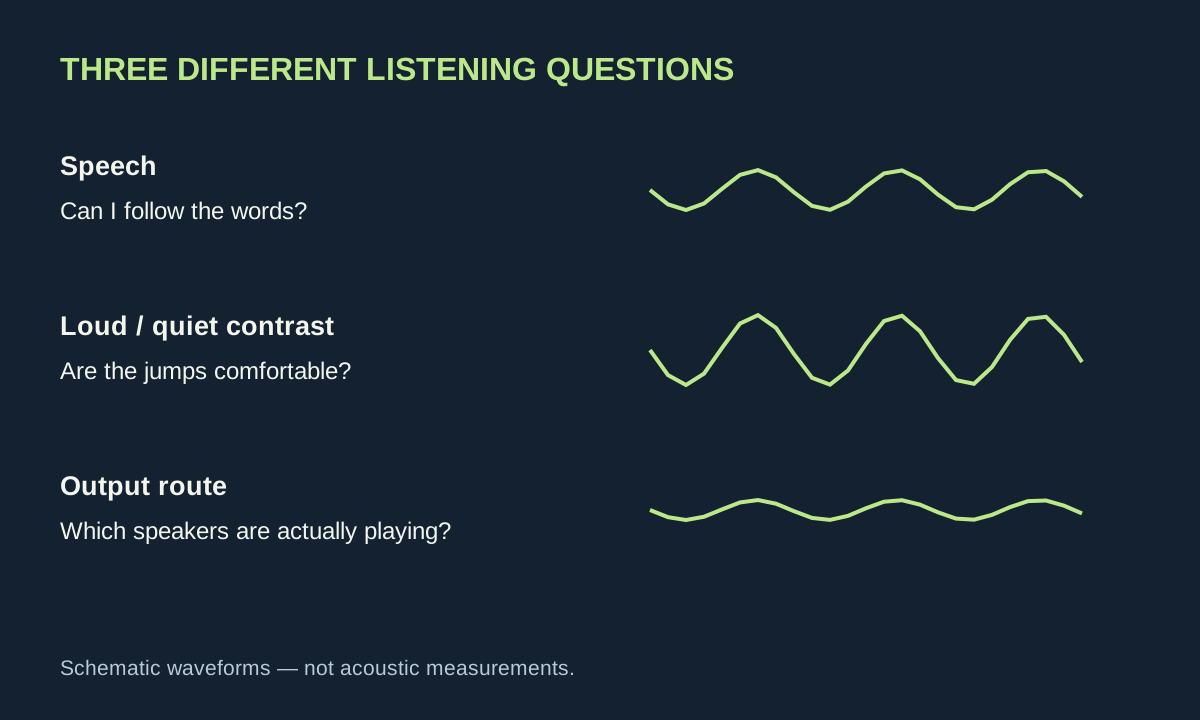
Three listening questions distinguish understandable speech, comfortable loudness changes and correct speaker output. Waveforms are schematic.

Turning up the television can make everything louder without making a conversation easier to follow. Music grows, a passing vehicle becomes more dramatic, and the next quiet sentence still disappears. A more useful question is where the words are getting lost. This guide offers a repeatable listening test, using equipment already in the room.

The aim is comfortable comprehension. It is not a hearing test, and it does not promise that one menu option can repair every mix. Programmes, speakers, seating and individual preferences differ. Subtitles are a normal viewing choice throughout the process, not an admission that the experiment has failed.

Pick a scene that lets you compare fairly

Use a short conversation containing both a quiet line and some background sound. Note its time so that you can return to exactly the same passage. Start at a comfortable volume and write down three observations: which words are difficult, whether louder effects become uncomfortable, and whether voices seem distant or merely quiet.

Then play a second programme with an ordinary studio conversation. If that is easy to understand, the first programme’s mix deserves attention. If both are difficult, investigate placement and configuration. This comparison does not isolate every variable, but it is more useful than switching channels at random while moving the volume up and down.

Ask a second viewer for their own notes before sharing yours. Agreement can identify a repeatable issue; disagreement is useful too. A household may need more than one saved listening preset rather than a debate about whose preference is correct.

Remove a physical obstacle before adding an effect

Check where the sound actually emerges. Some television speakers face down or backwards; a soundbar may sit behind a decorative object or inside a deep cabinet. Consult the equipment’s installation instructions and make sure the openings are unobstructed. Avoid improvised mounting, covered ventilation slots or precarious stacks of books.

Try your normal seat and a second sensible position. Listen for whether the words change more with the seat than with the volume. A hard, sparsely furnished room and a room with curtains and soft furnishings can behave differently, but this is an observation exercise, not a prescription to buy acoustic panels.

For an original comparison, replay the same thirty seconds with an existing curtain open and closed, keeping the volume fixed. Record what you actually hear. If there is no clear improvement, do not award the change an imaginary benefit. Ordinary background noise—a fan, conversation or an open window—can also make a meaningful comparison difficult.

Understand the three common controls

Dialogue enhancement attempts to make speech more prominent. Dynamic range control, sometimes presented as a night mode, reduces the contrast between quieter and louder passages. Equalisation changes the balance of frequency ranges. A television may combine several processes behind one preset, so the label alone is not a guarantee of what it does.

Dolby’s AC-4 documentation treats dialogue enhancement and dynamic range control as distinct capabilities. That does not mean every programme, service or television exposes separate dialogue. Availability depends on the complete delivery and playback chain.

Try one relevant control at a time. If a night mode makes quiet speech easier while preventing large jumps in volume, it may fit evening viewing. If voices become thin, harsh or unnatural, reduce the setting or return to the previous mode. A feature can solve one problem while creating another.

Check the output route

Write down the actual path: television speakers, television to soundbar, or external player to receiver. Make sure the selected output corresponds to the speakers you are using. With a receiver, check its speaker configuration against the physical system and follow its documented setup procedure; do not tell it that a centre speaker exists when none is connected.

Where an app offers different language or audio tracks, compare only options that genuinely match your language and system. A stereo and surround presentation can differ, but a forced format change is not automatically an improvement. Keep track of the original selection and restore it if speech or other sounds disappear.

Bluetooth headphones or other alternate outputs can help determine whether the room is contributing, if you already have them. Keep the level comfortable. Their different processing and delay mean that a better result does not prove the built-in speakers are defective; it simply identifies a useful alternate listening route.

Make captions readable from your seat

Look for subtitles or closed captions in the programme’s accessibility options. When a service offers both, captions commonly include useful non-speech information such as a sound or a speaker cue. Available languages, accuracy, appearance controls and timing vary by title and service. Test the actual programme rather than assuming a device-wide preference reaches every app.

Adjust size and background only as far as the interface allows. Check a bright scene and a dark one, and read from your usual seat. The useful test is whether words remain comfortable to read without covering details you need. A style that looks attractive in a settings preview may be harder to follow during a fast conversation.

Keep the result simple

Finish with a tiny comparison record: “original preset”, “speech preset” and “evening preset”, followed by one sentence describing each. Retest with the second programme. Save only changes that help in ordinary viewing, and leave a clear way for other household members to choose their preferred output.

If the sound seems out of step with lips, investigate audio delay separately. If the picture freezes as speech breaks up, use our streaming diagnosis. Neither problem is solved reliably by raising treble. A successful listening session ends with an identifiable improvement and a repeatable setting, not a shopping list.

Picture

Why television motion looks wrong—and how to identify the cause

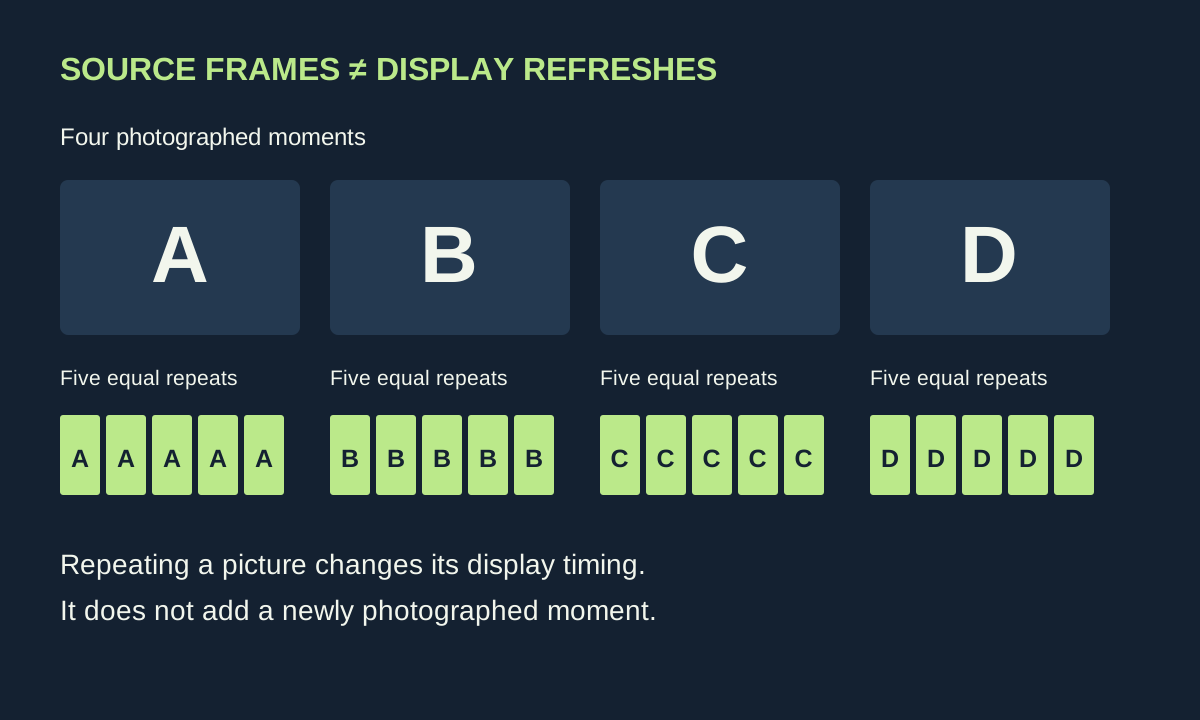
Four source frames A to D, each repeated five times on a display. No new photographed positions are created.

A camera pans across a city. Instead of a continuous glide, the buildings seem to advance in little steps. In another programme the movement is wonderfully smooth, yet the actors look as though they are standing in a brightly lit rehearsal. These are different observations. Treating both as a single problem called “bad motion” makes television settings unnecessarily confusing.

Begin with three questions: how often was a new image captured, how often can the screen update, and what processing happens between those points? Once those are separated, a useful adjustment becomes a small experiment rather than an evening spent changing every slider.

Three clocks, three jobs

The programme’s frame rate describes distinct pictures per second. A display refresh rate describes opportunities to update the panel. A 120 Hz screen does not create 120 genuinely photographed moments from a 24-frame-per-second film. It can repeat each original picture five times, retaining the timing of the source.

Consider an idealised sequence labelled A, B, C and D. Equal repetition might display AAAAA, BBBBB, CCCCC, DDDDD. There are more refreshes, but only four different source images. Interpolation takes another approach: processing estimates intermediate positions between A and B. Those estimates can make motion appear more continuous, but they are not additional camera observations.

This distinction also explains why a specification on the box cannot describe every experience. Panel capability, the incoming signal, the player’s output setting and the television’s processing all participate. A streaming device feeding a fixed format is another link in the chain, not simply an invisible cable.

Uneven timing is different from limited source motion

In a simplified 24-to-60 conversion, one frame lasts three refreshes and the next two. The arithmetic fits, but the display time alternates. That uneven cadence can add a rhythmic hitch to a pan. By comparison, evenly displayed 24 fps material still contains relatively few positions of a fast-moving object. Removing uneven cadence cannot supply missing photographed instants.

Our letter sequence is a teaching model. Actual pipelines can involve fractional frame rates, interlacing, reconstruction and display-specific behaviour. It nevertheless gives you a useful diagnostic question: does the movement have an alternating rhythm, or does every step seem equally visible?

On supported Apple TV models, Match Frame Rate asks the player to match the source cadence. Apple’s documentation also explains that format changes can briefly blank or flicker the display. That short transition should not be confused with a continuing fault during playback. Other players use different controls, and app support can vary.

The smoothing experiment

Choose a scene with a steady pan and a moving foreground subject. Record the current picture preset and motion options before changing anything. Watch the scene with interpolation disabled, then at its lowest available level, keeping the source and room unchanged. Do not compare a football match in one mode with a film in another: the material itself has changed.

Watch the edge of a person passing a fence or a fast-moving object crossing a detailed background. If processing produces an outline that bends, fragments or briefly disappears, write down the time. Now replay it without interpolation. A repeatable difference is much more informative than deciding one setting is “cinematic” and another is “wrong”.

The UHD Alliance’s Filmmaker Mode specification turns motion interpolation off and preserves the source frame rate and aspect ratio. It supplies a useful reference for intended presentation. Personal comfort can still lead a viewer to prefer a small amount of smoothing; the important thing is to recognise the trade-off rather than believe new photographic detail has appeared.

Build a two-minute test reel from things you already watch

  1. A slow pan: use buildings, trees or shelves with clear vertical edges. Note regular stepping and irregular hitches separately.
  2. A foreground crossing: look for processing artefacts around moving outlines, especially against busy scenery.
  3. A familiar conversation: decide whether faces and gestures still have the presentation you prefer.
  4. A live programme: check a moving camera and graphics together. Do not assume it was produced at the same frame rate as the film.

Keep the comparison short. Repeatedly pausing can reveal detail, but motion must also be judged while moving. Use the same seat and avoid switching several controls at once. A simple notebook entry—source, time, setting, observation—turns an uncertain impression into something you can reproduce tomorrow.

When the problem is elsewhere

A freeze followed by a jump forward may be a delivery or playback interruption. Try the same moment again. If it fails at a different point, check another programme and the service’s playback diagnostics before altering motion processing. The companion guide to streaming quality beyond a speed test separates those delivery problems from display behaviour.

If only one external player shows the issue, compare the television’s built-in app where the same programme is available. This is not proof that one device is better; it narrows the suspect chain. If both show the same effect at the same moment, the source or a shared display setting becomes a more useful place to investigate.

Finally, preserve a route back. Save a photograph of the menus or write the original values down. Film and sport can justify different preferences, and some televisions store settings separately by input or signal type. The goal is a repeatable choice that suits the programme—not a universal list of numbers copied from a different screen.

Keep the test scene’s time with those notes. A later comparison is much easier when you can return to the same movement instead of relying on your memory of how another programme looked.